



Immediate diagnostic steps for binance wallet connection error: How to fix binance wallet connection error
To resolve a Binance wallet connection failure between your Binance Web3 wallet and a decentralized application (dApp), start by refreshing the session and verifying your browser’s active permissions. Most connection errors stem from stale cache data or an outdated handshake request that prevents the dApp from reading your wallet’s public address. If you are learning how to use binance web3 wallet for dapps, ensuring a clean session is your first line of defense.
Clearing browser cache and session data
Web browsers often store legacy session tokens that conflict with new connection attempts. When a dApp fails to trigger the wallet pop-up, the browser may be holding onto a previous, expired session state. Clear your browser’s cache and cookies specifically for the domain of the dApp you are visiting. In Chrome or Brave, navigate to Settings, select Privacy and security, and clear site data for that specific URL. This forces the dApp to initiate a fresh EIP-1193 provider request, which is the standard protocol for wallet-to-dApp communication.
Verifying dApp permission settings
The Binance Web3 wallet maintains a list of authorized dApps that have permission to view your wallet address. If you previously revoked access or if the connection was corrupted, the wallet will silently block new requests. Open your Binance Web3 wallet interface, navigate to the ‘Settings’ or ‘Connected Sites’ tab, and inspect the list of active connections, which are governed by your Binance Web3 wallet privacy settings. If you need to clean up your access list, follow the steps on how to disconnect binance web3 wallet from dapps, then refresh the website and attempt to reconnect from scratch to establish a clean handshake.
Network synchronization and RPC node latency
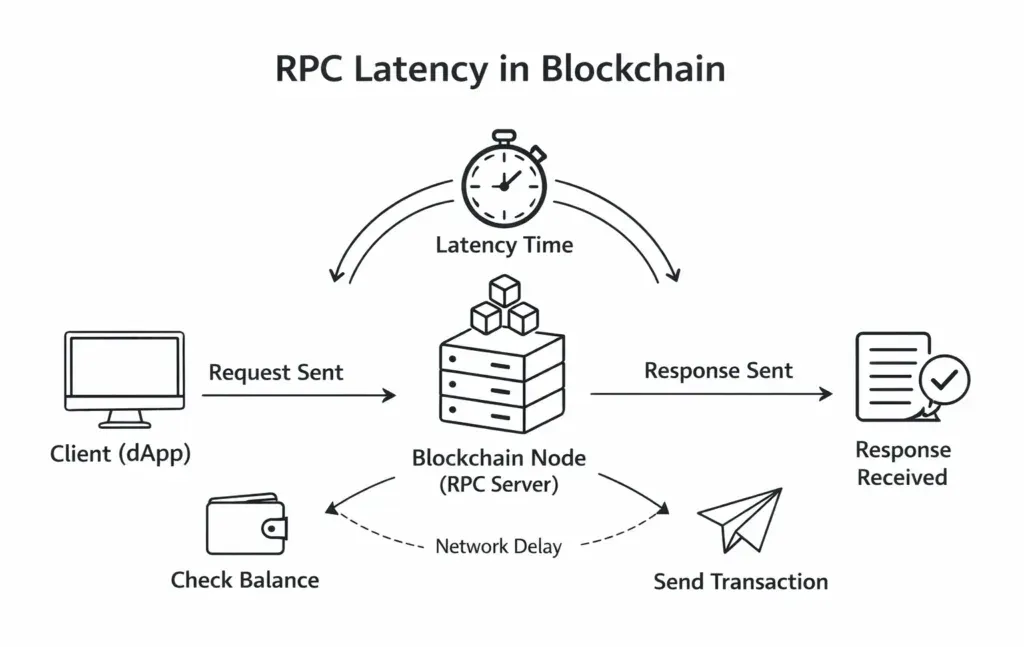
Connection errors frequently occur when the dApp expects a specific blockchain environment that does not match your current wallet network. This is crucial when connecting to PancakeSwap. If the dApp is configured for BNB Smart Chain but your wallet is set to Ethereum, the RPC (Remote Procedure Call) request will time out or return a null response.
Manual network switching and re-syncing
Ensure your wallet is manually switched to the network required by the dApp. If the network appears correct, the underlying RPC node may be congested. In your wallet settings, look for ‘Network’ or ‘RPC’ configurations. If the option is available, switch from the default node to a public RPC provider like Ankr or QuickNode to bypass local congestion. This action forces the wallet to re-sync its state with the blockchain ledger, often resolving ‘failed to fetch’ errors.
Troubleshooting Chain ID Mismatches
Sometimes, a dApp requests a specific Chain ID that your wallet does not recognize as active. If you see an error code like ‘0x1’ (Ethereum Mainnet) when the dApp expects ‘0x38’ (BNB Chain), manually add the network details via the ‘Custom Network’ feature in your wallet settings. Input the correct RPC URL, Chain ID, and symbol to ensure the handshake protocol aligns perfectly with the dApp’s requirements.
Browser extension and mobile app compatibility
Conflicts arise when multiple browser extensions attempt to inject the ‘window.ethereum’ provider simultaneously. If you have MetaMask, Trust Wallet, and Binance Web3 wallet extensions installed, they may compete to handle the connection request, leading to a silent failure.
Managing conflicting wallet extensions
To isolate the issue, disable all other crypto wallet extensions in your browser’s ‘Manage Extensions’ menu. Keep only the Binance Web3 wallet active. Once the other extensions are disabled, restart your browser. This prevents the ‘provider injection’ race condition where multiple wallets attempt to intercept the dApp’s connection request, ensuring the Binance wallet is the sole handler for the session. For users managing complex portfolios, understanding how to manage multi-chain dapps in binance wallet is essential for avoiding these conflicts.
Advanced Debugging: Inspecting Console Logs
If the connection still fails, you can identify the root cause by inspecting the browser’s developer console. Right-click on the webpage, select ‘Inspect’, and navigate to the ‘Console’ tab. Look for red error messages containing keywords like ‘User rejected the request’, ‘Provider not found’, or ‘Chain ID mismatch’. These logs provide the exact technical reason for the failure, allowing you to determine if the issue is a user-side configuration error or a server-side outage on the dApp’s end.
Security protocols and dApp blacklisting
Binance implements internal security filters that automatically block connections to websites flagged for phishing or malicious activity. If you encounter a persistent connection error on a specific site, the wallet may be protecting your assets by preventing the handshake.
Identifying malicious dApp triggers
Check if the dApp URL is legitimate by verifying it against official social media channels or community forums. If the wallet displays a ‘Security Warning’ or simply refuses to connect despite all other troubleshooting steps, it is likely that the domain is on a blocklist. Do not attempt to bypass these security measures using a VPN or by disabling browser security, as this exposes your private keys and assets to potential theft. Always check the binance web3 wallet dapp compatibility list to ensure you are interacting with verified and safe platforms.
Frequently Asked Questions
Reasons for Binance wallet balance display discrepancies
This usually happens when you are connected to the wrong network (e.g., Ethereum instead of BNB Chain) or the wallet has not finished syncing with the blockchain. Check your network selection in the wallet settings.
Procedures for resolving failed Binance withdrawals
Failed withdrawals are often due to network congestion, insufficient balance to cover gas fees, or account verification holds. Check your transaction history for specific error codes and ensure your account meets all security requirements.
Explanation of insufficient gas fee errors in Binance wallet
It means you do not have enough of the native blockchain token (like BNB for BNB Chain or ETH for Ethereum) to pay for the transaction processing cost. You must deposit more of the native token to proceed.
Methods for contacting Binance support regarding wallet errors
Use the official Binance support chat located on the bottom right of the Binance website or app. Avoid third-party ‘support’ links on social media, as these are often phishing attempts.
Recovery limitations for Binance wallets without seed phrases
If you are using the Binance Web3 wallet, you may be able to recover it via your cloud backup if you enabled it during setup. Without the seed phrase or a cloud backup, the wallet cannot be recovered.


