



Immediate connectivity verification
When the binance wallet browser extension not working, the primary cause is often a stalled handshake between the browser’s local environment and Binance’s API gateways. Before attempting a reinstallation, verify your network status by checking if you can access the Binance web interface directly.
If the web interface loads but the extension remains stuck on a loading screen, the issue is localized to the extension’s internal state or browser-level interference.
Browser process and cache isolation
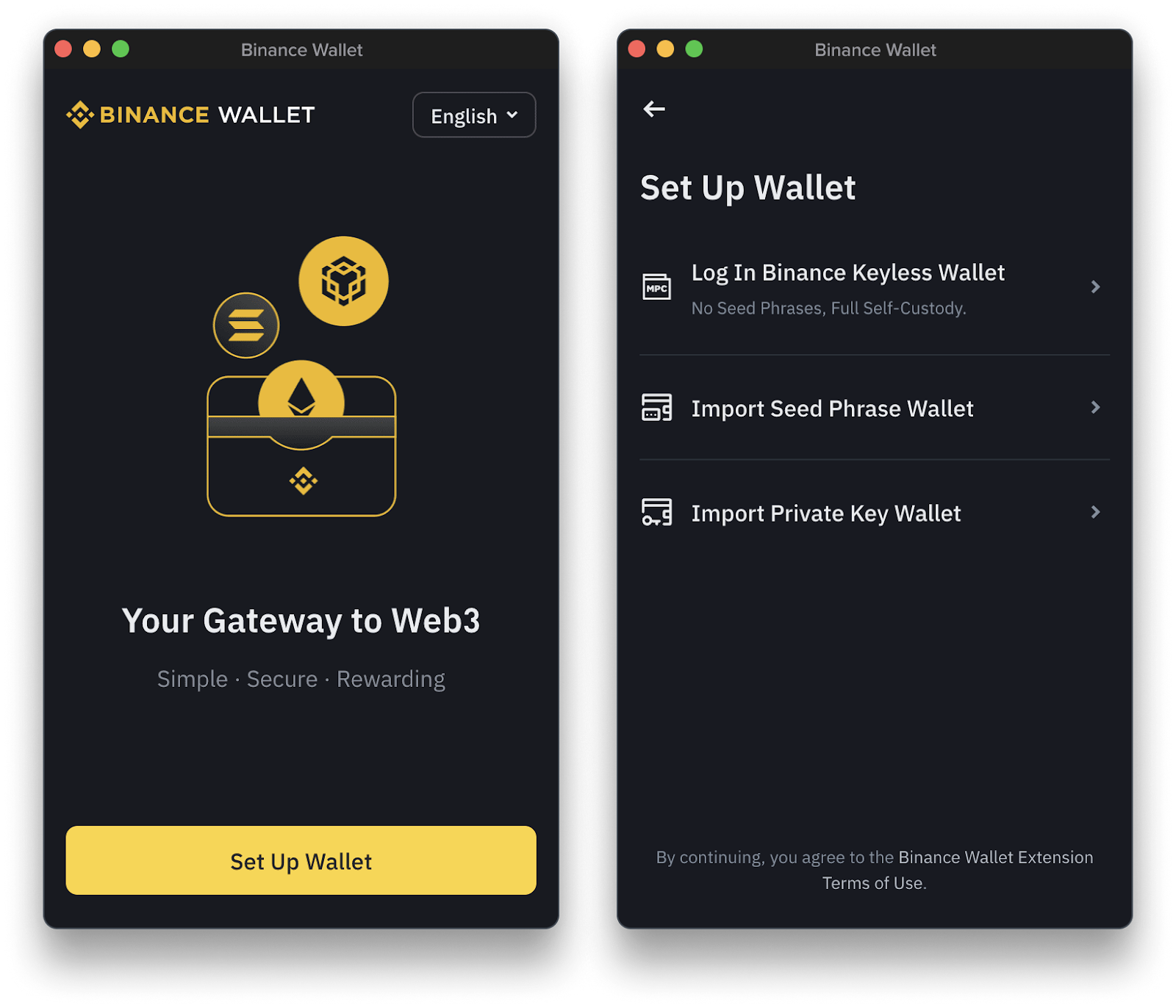
Browser extensions often cache session tokens and configuration files that can become corrupted after a browser update. To force a fresh handshake, you must clear the specific cache associated with the Binance extension rather than just the general browser history.
Navigate to your browser’s extension management page (chrome://extensions or edge://extensions), toggle the Binance wallet off, and then clear your browser’s cached images and files for the ‘All time’ duration. Restart your browser completely to kill any lingering background processes before re-enabling the extension. This forces the wallet to re-authenticate with the Binance backend, effectively clearing stale session data that prevents the wallet from initializing, a common step in any Binance wallet troubleshooting guide.
Extension permission and conflict checks
The Binance wallet relies on ‘injection’ technology for using Binance Web3 Wallet for dApps. If you have multiple crypto wallet extensions installed—such as MetaMask, Phantom, or Coinbase Wallet—these extensions may compete for the same ‘window.ethereum’ provider object. This conflict frequently results in the Binance wallet failing to detect your account or refusing to sign transactions.
To isolate the conflict, disable all other crypto wallet extensions temporarily. Once only the Binance wallet is active, refresh the page where you are attempting to connect. If the wallet functions correctly, you have confirmed a provider conflict. You can resolve this permanently by adjusting the ‘Site Access’ settings in your browser’s extension menu. Set the Binance wallet to ‘On click’ or ‘On specific sites’ to ensure it does not attempt to override other wallets unless you explicitly trigger it. If you are unsure about your current setup, reviewing how to disconnect binance web3 wallet from dapps can help you reset permissions and clear out any problematic connections.
Diagnostic steps for binance wallet browser extension not working
When your Binance wallet browser extension stops responding, the issue often stems from cached data conflicts or outdated communication protocols between the browser and the blockchain network. Before attempting a full reinstallation, systematically isolate the failure point using the following technical procedures.
Version synchronization and update enforcement
Browser extensions rely on manifest files that define permissions and API endpoints. If your browser fails to pull the latest update, the extension may attempt to call deprecated functions, leading to a frozen interface or transaction failure. To force an update:
- Navigate to your browser’s extension management page (e.g.,
chrome://extensionsin Chrome oredge://extensionsin Edge). - Toggle the Developer mode switch in the top right corner.
- Click the Update button that appears in the top menu bar. This forces the browser to re-check the web store for the latest manifest version.
- Restart your browser entirely to clear the background process cache.
If the extension remains unresponsive, verify that your browser version itself is current. Chromium-based browsers frequently update their internal security sandboxes, which can break older extension builds if the browser is running a version older than three months.
Network RPC endpoint validation
The Binance wallet extension connects to specific Remote Procedure Call (RPC) nodes to broadcast transactions and fetch balances. If the default node is congested or offline, the wallet will appear stuck on a loading screen. You can diagnose this by inspecting the browser’s console logs, which can help fix Binance wallet connection error:
- Right-click the extension icon and select Inspect popup.
- Navigate to the Console tab.
- Look for red text indicating
403 Forbidden,502 Bad Gateway, orNetwork Errorrelated tobsc-dataseedor similar RPC URLs.
If you identify connection errors, the extension is likely failing to reach the primary node. While the Binance wallet typically manages these endpoints automatically, you can mitigate this by clearing your browser’s local storage for the extension’s origin.
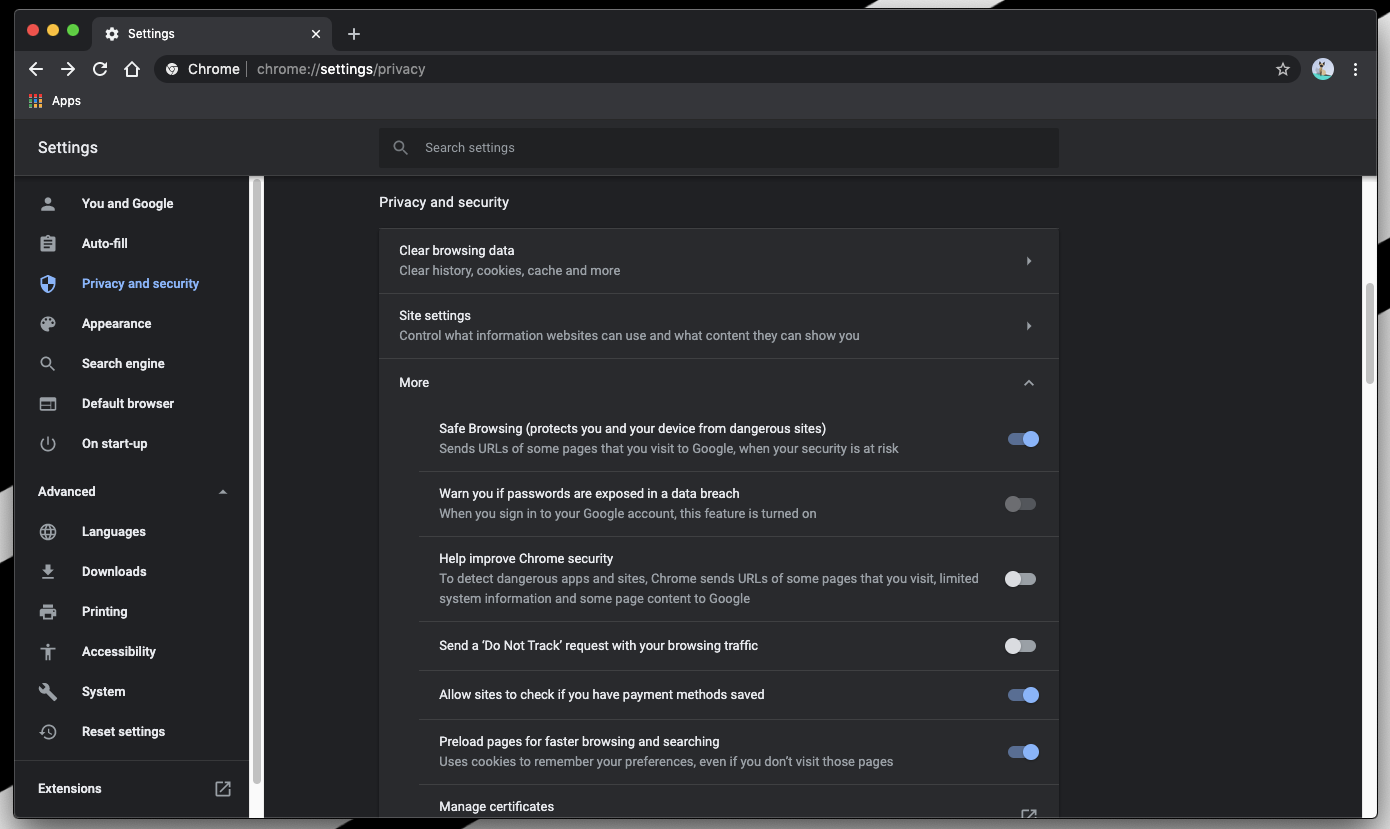
Go to Settings > Privacy and security > Site Settings > View permissions and data stored across sites, search for the extension ID, and clear the data. This forces the wallet to re-initialize its connection handshake with the network upon the next launch, a process detailed in a comprehensive Binance wallet privacy settings guide.
State restoration and seed phrase recovery
When the binance wallet browser extension not working persists despite cache clearing, the internal state of the extension may be corrupted. Restoring your wallet using your seed phrase is the most effective way to reset the local database and resolve synchronization errors between the browser and the blockchain.
Secure re-installation protocol
Before attempting a re-installation, ensure you have your 12 or 24-word recovery phrase stored in a physical, offline location. Do not rely on screenshots or digital text files, especially when considering the security benefits of Binance Wallet vs Hardware Wallets. Follow these steps to perform a clean install:
- Navigate to your browser’s extension management page (e.g., chrome://extensions).
- Locate the Binance Wallet extension and select Remove.
- Restart your browser completely to clear any lingering temporary files or background processes associated with the extension.
- Re-download the extension exclusively from the official Chrome Web Store or the official Binance website to avoid malicious clones.
- Once re-installed, select the Import Wallet option rather than creating a new one.
Seed phrase import best practices
Restoring your wallet requires caution to prevent exposure of your private keys. Perform the import process in a secure environment to minimize the risk of keyloggers or malicious browser scripts.
First, disconnect your computer from the internet before opening the extension for the initial setup if you are concerned about network-based threats. While the extension requires a connection to verify the seed phrase against the blockchain, you can input the words while offline to ensure no data is transmitted during the typing process. Only reconnect once the recovery phrase is entered and you are prompted to set a new local password.
Always verify the derivation path if the extension provides advanced settings. If your funds do not appear after a successful import, ensure you are selecting the correct network (e.g., BNB Smart Chain vs. Ethereum) within the wallet interface. The wallet state is network-specific; toggling the network view often reveals assets that appear missing due to a synchronization delay during the initial restoration phase. For users managing diverse portfolios, understanding how to manage multi-chain dapps in binance wallet is essential to ensuring all your assets are visible and accessible.
Advanced debugging via browser console
When standard troubleshooting steps like clearing cache or reinstalling the extension fail, the browser console acts as the primary diagnostic tool. Developers and power users can inspect the underlying communication between the Binance Wallet extension and the blockchain network to identify silent failures that do not trigger UI alerts.
Interpreting console error logs
To access the console, right-click the Binance Wallet icon in your toolbar, select Manage Extensions, and toggle on Developer mode. Click the background page link associated with the Binance Wallet to open a dedicated DevTools window. Navigate to the Console tab to view real-time logs.
Look for these common indicators when the binance wallet browser extension not working:
- 403 Forbidden or 429 Too Many Requests: These errors indicate that your IP address or the extension’s RPC endpoint is being rate-limited. If you see these, try switching your network connection or using a VPN to bypass potential regional restrictions.
- Uncaught TypeError: Cannot read property of undefined: This suggests a state synchronization issue. It often occurs when the extension fails to fetch your account balance or nonce from the blockchain, causing the Binance wallet signature request failed error.
- WebSocket connection failed: If the extension relies on a persistent connection for price feeds or pending transaction updates, a failed WebSocket handshake will prevent the wallet from displaying accurate data. Check your firewall or antivirus settings, as these often block non-HTTP traffic.
If you encounter a ‘Failed to fetch’ error, the issue is likely a CORS (Cross-Origin Resource Sharing) policy conflict or a timeout from the Binance API nodes. You can verify this by checking the Network tab in the same DevTools window. Filter by Fetch/XHR and click on any red-highlighted requests to see the response body.
If the response returns an empty object or a generic error code, the problem lies with the node provider rather than your local installation. In such cases, waiting for the service to stabilize is often more effective than attempting further local configuration changes.
Frequently Asked Questions
Initial diagnostic actions for extension loading failures
Start by checking the extension’s status in your browser’s ‘Manage Extensions’ menu to ensure it is enabled, then perform a hard refresh (Ctrl+F5 or Cmd+Shift+R) of the dApp page you are attempting to access. If you are still having trouble, you might want to check the binance web3 wallet dapp compatibility list to ensure the platform you are using is fully supported.
Impact of browser cache corruption on wallet performance
Yes, outdated cache or conflicting cookies from previous sessions often prevent the extension from communicating with the blockchain. Clearing your browser’s site data for the specific dApp domain is a standard fix.


