



Prerequisites for activating Binance 2FA: How to enable 2FA on Binance wallet
Securing your Binance account requires a verified identity and a secondary device to host your authentication keys. Before initiating the setup, ensure you have access to the mobile device associated with your account and a stable internet connection.
You must have already completed your initial account registration and passed the basic Know Your Customer (KYC) verification, as Binance restricts security configuration changes for unverified accounts.
Required authentication tools
Binance offers three primary methods for Two-Factor Authentication (2FA). Choosing the right one depends on your preference for convenience versus hardware-level security:

- Google Authenticator: This is the industry standard for time-based one-time passwords (TOTP). You must download the Google Authenticator app from the Apple App Store or Google Play Store. It generates a new six-digit code every 30 seconds, which you must enter when prompted during login or withdrawal attempts.
- Binance/Passkey (FIDO2): This method utilizes your device’s built-in security features, such as FaceID, TouchID, or a hardware security key like a YubiKey. It is generally considered the most secure option because it is resistant to phishing attacks that can bypass standard TOTP codes.
- SMS/Email Authentication: While available, these are considered less secure due to risks like SIM swapping or email account compromise. Binance strongly recommends using these only as a secondary layer alongside an authenticator app or hardware key.
Before proceeding, ensure your mobile device’s system clock is set to ‘Automatic’ or ‘Network-provided.’ If your device time drifts by even a few seconds, the TOTP codes generated by Google Authenticator will be rejected by the Binance servers, causing persistent login errors.
Steps to enable 2FA on Binance wallet via mobile app
Securing your Binance account begins with navigating to the security settings menu. Once logged into the Binance mobile application, tap the profile icon in the top-left corner and select the Security tab. From this dashboard, choose Authenticator App to initiate the binding process.

Binance will prompt you to download a compatible application such as Google Authenticator, Microsoft Authenticator, or Authy if you do not already have one installed on your device.
Configuring the authenticator app
After selecting your preferred authenticator app, Binance will display a unique 16-digit setup key and a QR code. This step is critical for account recovery. You must copy this 16-digit alphanumeric string and store it in a secure, offline location, such as a physical notebook or an encrypted password manager.
If you lose your mobile device, this backup key is the only way to regain access to your 2FA codes. Open your chosen authenticator app and select the option to add a new account. Use your phone’s camera to scan the QR code displayed on the Binance screen. If your camera is malfunctioning, you can manually enter the 16-digit key provided by Binance into the app.
Once the account is linked, the authenticator app will begin generating a new six-digit code every 30 seconds. Return to the Binance app and tap Next. You will be required to verify the setup by entering the current six-digit code generated by your authenticator app.
Finally, Binance may send a verification code to your registered email address or phone number to confirm the change. Once you input these codes, 2FA is successfully enabled. Every future login attempt or withdrawal request will now require the time-sensitive code from your authenticator app, significantly reducing the risk of unauthorized access to your digital assets.
Enabling 2FA on Binance wallet through desktop browser
To secure your account via a desktop browser, log in to your Binance dashboard and navigate to the Security section located under the user profile icon. You will see a list of available authentication methods, including Binance Authenticator, Google Authenticator, and hardware security keys like YubiKey.
Select the Authenticator App option to begin the process. Binance will display a QR code on your screen. Open your chosen authenticator app—such as Google Authenticator or Authy—on your mobile device and scan the QR code.
If your device cannot scan the code, manually input the provided 16-digit setup key into the app. Ensure you save this backup key in a secure, offline location, as it is the only way to recover access if you lose your phone.
Verifying the security setup
After linking the app, you must perform a final verification to confirm the synchronization between your device and the Binance server. The platform will prompt you to enter the current six-digit code generated by your authenticator app. Once entered, click Submit to finalize the binding process.
If you have other security layers enabled, such as SMS or email verification, Binance may require you to enter a code sent to those channels as a secondary confirmation step. Upon successful verification, the status of your authenticator app will change to Enabled.
From this point forward, every time you attempt to log in or initiate a withdrawal, the system will require the time-sensitive code from your app. Test the setup by logging out and logging back in to ensure the prompt appears as expected. If the code is rejected, check that the time settings on your mobile device are set to Automatic, as even a few seconds of drift can cause authentication failures.
Managing recovery and security risks
Enabling two-factor authentication is the most effective defense against unauthorized access, but it introduces a single point of failure if you lose access to your authenticator app. Binance requires users to maintain a recovery strategy to prevent permanent account lockout.
Always store your 16-digit backup key—generated during the initial setup—in a secure, offline location such as a physical safe or an encrypted password manager. If you are also interested in how to use binance web3 wallet for dapps, ensure your security practices extend to those decentralized environments as well.
Procedures for lost 2FA devices
If you lose your phone or delete your authenticator app, you cannot log in using your standard credentials. You must initiate a manual 2FA reset through the Binance security portal. Follow these specific steps to regain access:
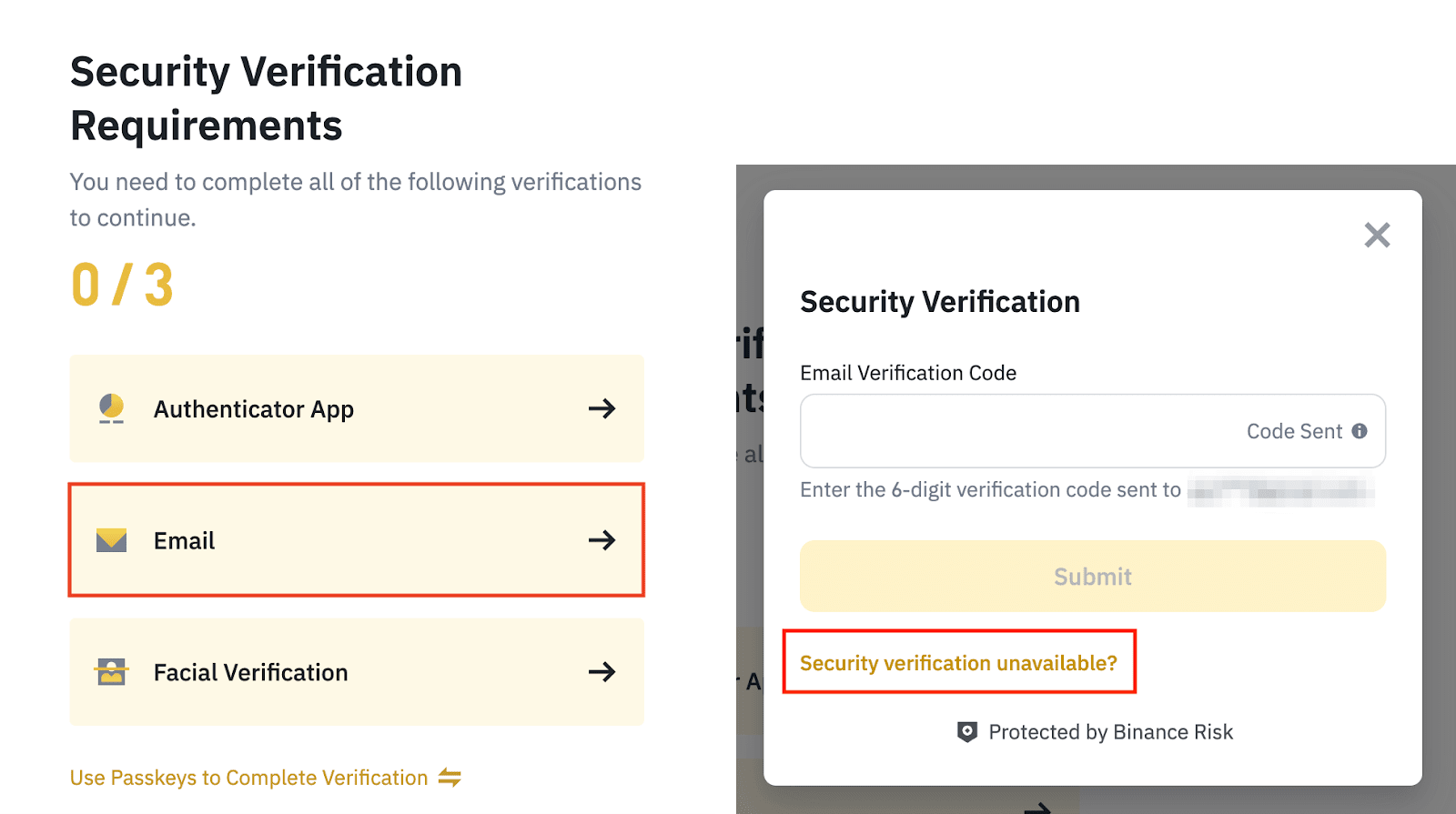
- Navigate to the Binance login page and enter your email or phone number.
- When prompted for the 2FA code, click the “Security verification unavailable?” or “Reset 2FA” link.
- Select the specific verification method you need to reset—typically Google Authenticator or SMS.
- Complete the identity verification (KYC) process. This requires uploading a clear photo of your government-issued ID and recording a facial verification video via the Binance mobile app.
The manual reset process is intentionally rigorous to prevent malicious actors from hijacking accounts. Once the request is submitted, Binance support typically reviews the documentation within 48 to 72 hours. During this period, withdrawals are automatically disabled as a protective measure.
If you have multiple security methods enabled, such as a physical security key (YubiKey) or email verification, you may be able to bypass the manual reset by using these alternative factors to sign in and disable the compromised 2FA method directly from your account settings.
Avoid relying solely on cloud-synced authenticator backups, as these can be compromised if your cloud account is breached. A physical backup of your setup key remains the most reliable method for account recovery.
Frequently Asked Questions
Recommended 2FA methods for Binance
Binance recommends using a hardware security key or passkeys for the highest level of security. Google Authenticator is the most common and reliable alternative for mobile users.
Limitations of SMS authentication on Binance
While SMS 2FA is available, it is considered less secure than app-based authenticators or hardware keys due to the risk of SIM-swapping attacks.


